- New
- Popular



Introducing the new feature of Parametric Stairs in Homestyler!
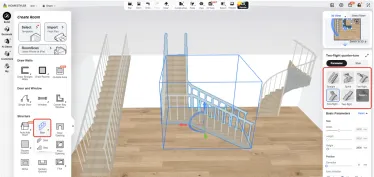
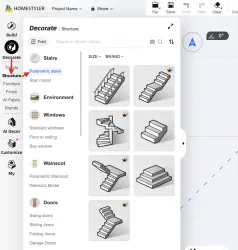
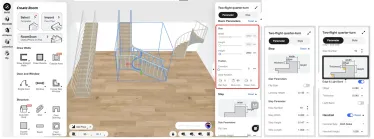
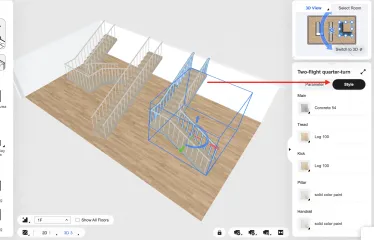
Tired of boring, one-size-fits-all stairs? Now you can easily create custom staircases—straight runs, L-shaped turns, spiral designs around a central pole, and more—all without complex modeling. What Are “Parametric Stairs”? “Parametric” means you control every dimension. Change the width, height, number of steps, or angle—and the entire staircase updates automatically to stay structurally accurate. No manual redrawing needed! Create Your Perfect Staircase in 4 Simple Steps Step 1: Open the Para
- +4
New Feature - Add Windows to Roofs
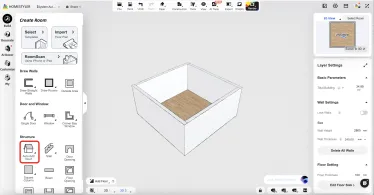
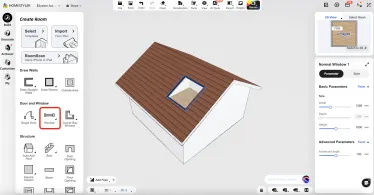
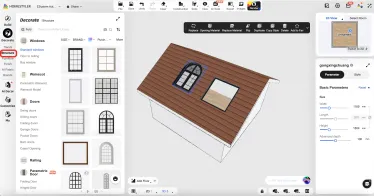
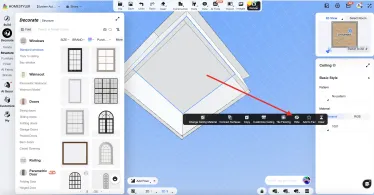
🎉 The Long-Awaited Roof Window Feature Is Now Live! You can now freely add windows to roofs and create bright, airy lofts, skylights, or sunlit rooftop spaces with ease. 🛠️ How to Use It? Just 4 Simple Steps: 1.In the left menu, go to Structure and use the roof tool to draw and generate your roof. 2.Once the roof is created, simply drag and drop any window model from the library directly onto the roof surface. After placement, select the window to adjust its size, height, rotation, and other pro
- +1
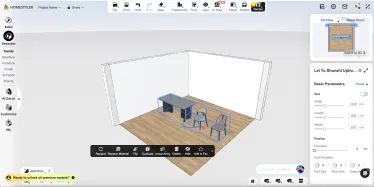
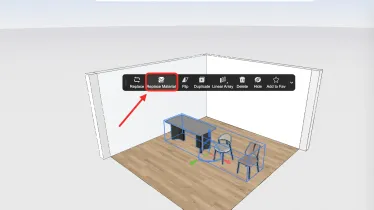
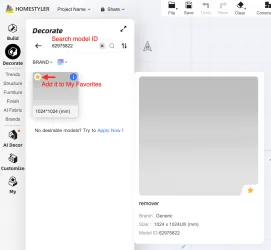
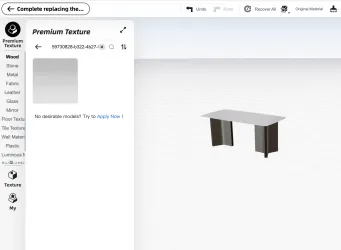
Homestyler Tips:Can’t remove unwanted parts of a model? Hide it with a transparent material!
Have you ever encountered this issue? A model in the library contains multiple components, but you only want to keep part of it, like the unwanted cushions on the sofa, or unmatching accessories on table? Today, we’ll show you a quick trick to easily hide the parts you don’t need. Left click to select the grouped model you want to edit on the canvas. Click [Replace Material] in the left-click toolbar menu. Search using this Material ID: 59730828-b322-4b27-9598-943aff1fd74e This is a transparent
- +1


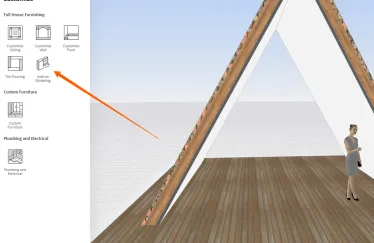
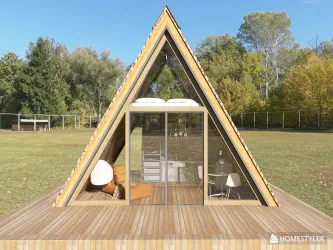
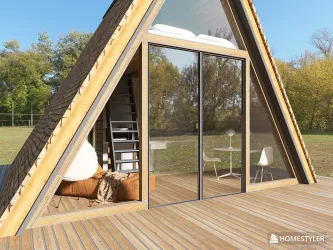
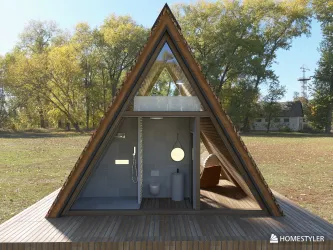
A Frame Tutorial using Interior Modeling
Okay, I have a few beautiful folks ask me how I do an A Frame. It's hard for me explain in writing so I'm posting some videos on how I do it. I would suggest that you have to know at least how Interior Modeling works. It is not so much as you're an expert of this tool, but if you know how to work this tool - it will make your life so much easier because you can create objects and save them as such- and resuse them later on. Your creative life will not be contained in just using the objects that


The project won't save and I can't make renders
Hi. I'm in the middle of designing and I can't save the project. The website works, but it won't save renders or update the project. If I refresh the page, I'll lose the project. What can I do? It's urgent. The name of project is "Kuchnia_Kostrzewa". My email - kasia.wojszko@gmail.com



Откатная (раздвижная) дверь
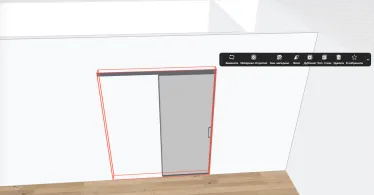
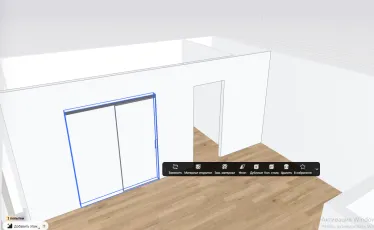
Здравствуйте. Как установить откатную дверь так, чтобы она была перед стеной? То есть механизм должен крепиться на стену, соответственно и дверь при откате должна располагаться перед стеной, а не буд-то бы в проеме, а сама рельса в стене (так хоумстайлер устанавливает данный тип дверей автоматически).




Rendering vs. shared project
When I try to render my project, the system says that it cannot be done, because the project is shared and I need to pay for it. I've double checked and the project is set to private. I have logged out and in again and retried rendering, but it still keeps saying that the project is shared and therefore submitting the render is not applicable for me. Please correct this bug, or help me how to solve my issue. Thanks. ps.: A menu item for bug report would be much appreciated.

AI Painter - Turn Your Photo into Art in Seconds (AI Painter User Guide)
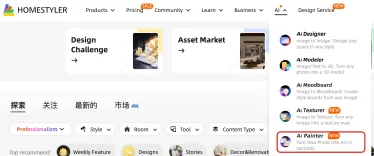
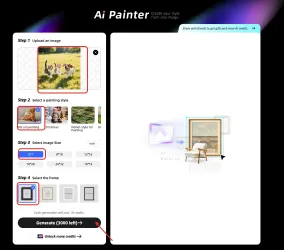
In this tutorial, you'll learn how to use the AI Painter feature to transform your photos into stunning artworks in a variety of styles. Simply upload an image, choose your preferred style and frame size, and let the AI generate high‑quality art for you. This guide will walk you through the entire process and share tips to help you achieve the best results. Tutorial for AI Painter Web: 1.Open the Homestyler website. 2.On the top navigation bar, click AI → AI Painter (“Turn Your Photo into Art in


- +1
AI Painter - Turn Your Photo into Art in Seconds (AI Painter User Guide)
AI Painter - Turn Your Photo into Art in Seconds (AI Painter User Guide) In this tutorial, you'll learn how to use the AI Painter feature to transform your photos into stunning artworks in a variety of styles. Simply upload an image, choose your preferred style and frame size, and let the AI generate high‑quality art for you. This guide will walk you through the entire process and share tips to help you achieve the best results. Tutorial for AI Painter Web: 1.Open the Homestyler website. 2.On th
- +1

Defective rendering
Good day! Over a week I've been trying to create proper renders and failed due to strange effects happened like unexpected mirrowed image in the glass of the widow or partly slurred image. The update is automatic. Reload is a constant proceedure. Nothing helps. What might have happened? Please be so kind to help if you can!
Problem: Guidelines are not being applied to walls in 'Interior Modeling'
Guidelines are not being applied to walls in 'Interior Modeling' . - The guidelines are not visible. - They seem to be behind or inside the wall. - They flicker when I try to change the angle of the project. I would appreciate it if you could repair the system so that the guidelines are displayed correctly.



